
Connect Medtronic CareLink to Nightscout Pro
This guide walks you through connecting Medtronic CareLink data to your Nightscout Pro site using Pro Connect.
Updated 27 July 2026: We’ve made this process much easier. The new Authenticate CareLink button opens a secure browser, detects the CareLink redirect automatically and saves the connection for you. You no longer need to use Developer Tools or copy and paste the redirect URL during the normal setup. The previous manual method is still available as a fallback.
Before you start
- You need an existing Medtronic CareLink account with data already uploading to CareLink.
- You need a separate Medtronic Care Partner account linked to the existing CareLink account as a follower. Use this dedicated follower account for Nightscout Pro.
- You need access to your Nightscout Pro dashboard.
- Use a modern desktop browser for the clearest experience.
- Allow pop-up windows from Nightscout Pro when prompted.
- Make sure you select the correct timezone so your data is not time-shifted.
Important: use a dedicated Care Partner account
Do not connect Nightscout Pro using your main CareLink account or an account that you use anywhere else.
Nightscout Pro needs to re-authenticate with CareLink automatically every few hours. For this to keep working:
- Create a separate Medtronic Care Partner account for Nightscout Pro.
- Link that account to your existing CareLink account as a follower.
- Use the dedicated account only for the Nightscout Pro connection.
- Do not use the dedicated account to sign in to the CareLink website, CareLink apps, another device or another service outside the Nightscout Pro setup process.
- Do not enable multi-factor authentication (MFA) on the dedicated account.
Signing in with the dedicated account somewhere else can invalidate the session Nightscout Pro relies on. Enabling MFA means the automatic re-authentication cannot complete without someone approving the MFA prompt. In either case, automatic re-authentication will fail and you may need to repeat the manual sign-in every few hours.
Your main CareLink account can continue to be used normally and can keep MFA enabled. Protect the dedicated follower account with its own strong, unique password that you do not use for any other account.
Recommended method: use the secure browser
1) Open Pro Connect
From your Nightscout Pro dashboard, open the PRO CONNECT section on the update page.
- Set Source to Medtronic CareLink
- Check that Timezone is set to your local timezone
- Click Authenticate CareLink (opens secure browser)
Keep the original Nightscout Pro tab open while you complete the sign-in.
2) Sign in to CareLink
A secure browser window will open on the official Medtronic CareLink login page.
- If your CareLink username and password are already saved in Pro Connect, they will be filled in automatically when possible.
- Otherwise, enter your CareLink username and password in the secure browser.
- Complete any reCAPTCHA prompt shown by Medtronic.
- Check that the username is correct before submitting the login form.
If Medtronic asks for MFA, the login may work now but automatic re-authentication will fail later. Use a dedicated Care Partner account without MFA instead.
You can use Full screen for a larger view. If normal pasting is unavailable, select the CareLink field and use Paste clipboard.
3) Let Nightscout Pro finish the setup
Submit the CareLink login form. After CareLink accepts the sign-in, Nightscout Pro will normally:
- Detect the redirect automatically
- Securely prepare the CareLink connection
- Save the CareLink username and password captured from the successful login to Pro Connect for the next sign-in
- Close the secure browser window
- Save Pro Connect automatically when all required details are complete
There is no redirect URL or generated credential to copy and paste.
If Nightscout Pro asks you to complete a highlighted field, do so and then click SAVE PRO CONNECT.
That’s it, setup complete
Allow Pro Connect to start, then compare a new CareLink reading with Nightscout. Typical end-to-end delay is 5–20 minutes; pump events depend on what CareLink supplies.
Provided the dedicated account is not used elsewhere and does not have MFA enabled, you should not normally need to touch this again. Very occasionally, Medtronic may still disconnect the account. If that happens, return to Pro Connect and repeat the secure-browser sign-in.
Manual fallback: the previous redirect method
The previous method is still available if the secure browser does not work in your browser or you prefer to complete the redirect manually.
You will need a desktop browser with access to Developer Tools for these steps.
1) Open the manual CareLink login
In PRO CONNECT:
- Set Source to Medtronic CareLink
- Check that Timezone is correct
- Enter or check your CareLink username in
CONNECT_CARELINK_USERNAME - Enter or check your CareLink password in
CONNECT_CARELINK_PASSWORD - Expand Use the manual redirect method
- Click Open the manual CareLink login
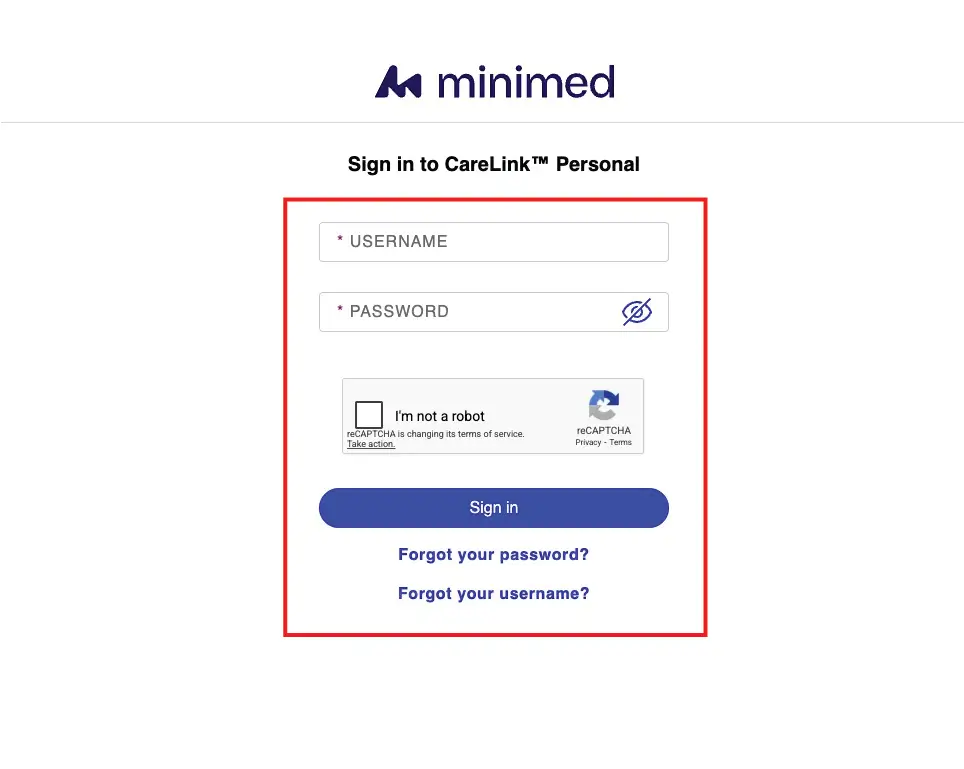
The official Medtronic CareLink login page normally opens straight away. If the CareLink Auth page appears first, click Open CareLink Login.
2) Log in to CareLink
Complete the Medtronic login, including any reCAPTCHA or multi-factor authentication steps.
3) Find the CareLink redirect URL
After logging in, the page may appear blank or show an unknown-protocol message. This is expected.
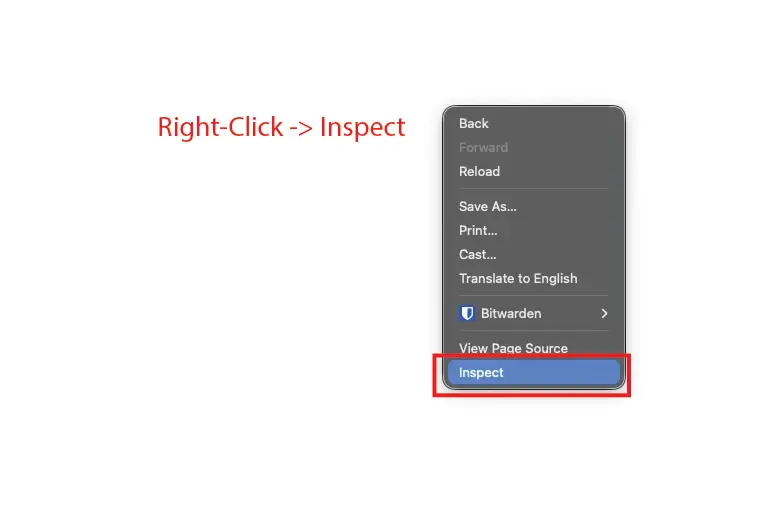
Open Developer Tools by right-clicking the page and choosing Inspect, then open the Console.
Look for a message containing a URL beginning with:
com.medtronic.carepartner:/sso?code=...
Copy either the full console message or just the complete com.medtronic.carepartner:/sso?... URL.
The redirect contains a one-use authorization code and state. Paste it only into the signed-in Pro Connect field. Do not send the redirect, code or state in a support ticket, email or screenshot.
4) Paste the redirect and save
Return to the original Nightscout Pro update page. Under Use the manual redirect method:
- Paste what you copied into CareLink redirect URL
- Click SAVE PRO CONNECT
Nightscout Pro will extract the redirect URL, create the CareLink connection and save it. Allow about one minute for Pro Connect to start.
Confirm it’s working
- Wait a few minutes, then check your Nightscout site for new pump or CGM entries.
- Check Pro Connect Logs if no new data appears.
- If CareLink is current but Nightscout remains stale beyond the usual 5–20 minute range, inspect Pro Connect Logs. Reauthenticate if they show rejected or expired authentication. If the same failure returns, send support the error and time instead of repeating the entire login procedure.
Troubleshooting
- The secure browser does not open: allow pop-ups from Nightscout Pro, then click Authenticate CareLink again.
- The secure browser closes before setup completes: reopen it and complete the CareLink login without closing either Nightscout Pro tab.
- Saved details are not filled automatically: enter them in the secure browser. They will be saved to Pro Connect after a successful sign-in.
- CareLink asks you to re-authenticate every few hours: check whether the account has MFA enabled or has been used to sign in somewhere else. Create a dedicated Care Partner follower account without MFA and use it only with Nightscout Pro.
- The manual redirect cannot be found: in Developer Tools, look specifically for
com.medtronic.carepartner:/sso?code=.... - Times are wrong or shifted: check the Timezone setting in Pro Connect.
Security notes
- Enter your CareLink details only on the official Medtronic login page or your signed-in Nightscout Pro update page.
- The secure browser is temporary and its browser profile is deleted when the window closes.
- Keep MFA enabled on your main CareLink account. The dedicated follower account is the only account that should have MFA disabled for this connection.
- Give the dedicated follower account a strong, unique password and never reuse it elsewhere.
- Do not share screenshots containing your CareLink redirect URL or credentials.
- If you believe your CareLink details have been exposed, change your CareLink password and authenticate again.
Device and data limits
CareLink reports alone do not prove live connector compatibility. Record the pump, sensor, phone app and country when asking about a new combination. Available pump events and status are imported only when the source provides them; a complete Nightscout profile is not promised. InPen report linking is not proof of live pen-dose import.